

Your avatar, your call: the new avatar editor
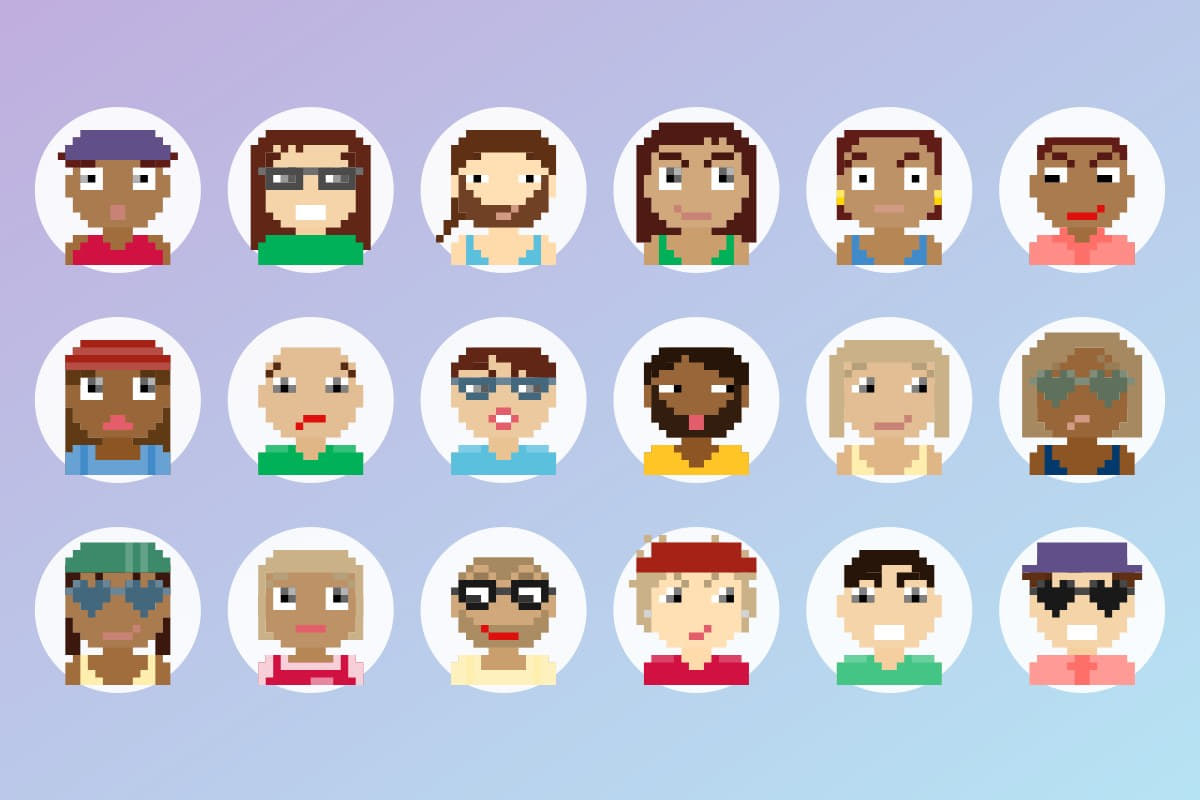
Your avatar is the face your teammates see on the leaderboard, in the team card, and next to every post you make in the Community. Until now you had exactly one way to change it: press a refresh button and hope the next random face was better than the last one. Some people pressed it forty times.
That button is gone. In its place is an avatar editor that puts every part of the pixel-art face in your hands.
What you can change
The editor opens on the face you already have, so you can tweak rather than start over. It is organised in four tabs:
- Face — skin tone, eyes, eyebrows, mouth and mouth colour, and an optional beard
- Hair — 26 hairstyles (or none), 10 hair colours, 12 hats and their colours
- Outfit — 25 outfits and their colours, 7 pairs of glasses, and accessories such as earrings
- Style — mirror the face, rotate it, zoom in or out, nudge it left, right, up or down, and give it a background colour
Every colour row comes with a palette plus a custom colour picker, so a team can match its jersey, or you can match your favourite hoodie.
See it before you keep it
Each thumbnail in a row is your current face with just that one part swapped, so you judge a hat on your own head rather than on a generic one. The large preview at the top updates with every tap. Nothing is stored until you press Save — and Reset brings back the avatar you walked in with if you have gone too far.
Still want a surprise? Randomize rolls an entirely new face, exactly like the old refresh button did — except now you can fix the one thing you did not like about it instead of rolling again.
Where it shows up
Once saved, the new avatar appears everywhere the old one did: competition leaderboards, team lists, the Community feed and comments, Step Bank history, and the profile your manager sees. Existing avatars are untouched — if you never open the editor, nothing changes.
How to try it
- Open STEPathON and go to Profile
- Tap the pencil on your avatar
- Work through Face, Hair, Outfit and Style
- Press Save
Why this matters for teams
Wellbeing challenges work best when people feel present in them. A face you picked on purpose is a small thing, but it is the difference between "some pixel person on the leaderboard" and you on the leaderboard. Recognition, kudos, team banter — all of it lands better when the avatar is one you actually chose.
Questions or feedback on the avatar editor? Write to us at support@stepathon.io.